How to Add Music to Your Instagram Story
Jul. 11, 2023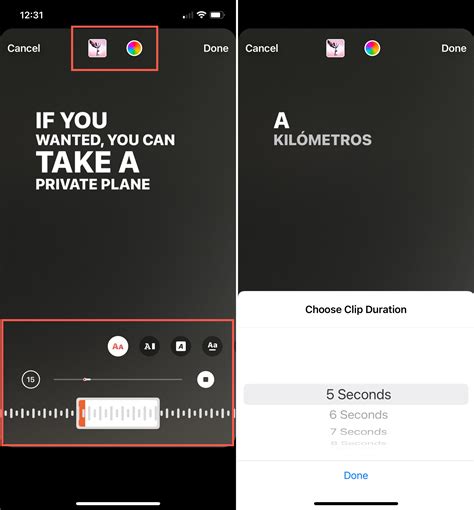
How to Add Music to Your Instagram Story
-
Open the Instagram app on your Android or iOS device.
-
Now, either swipe left on the Instagram homepage or tap the plus icon at the bottom. Then, select theStoryoption.
-
Once here, you can either capture an image, or a video or choose a media from your gallery.
-
Once you have selected the image or video, tap thesticker iconat the top.
-
In the pop-up menu that appears, tap the “Music” sticker icon.
Alternatively, you can simply tap the new “Music” icon in the top menu bar. This music shortcut is currently rolling out and is available on both Android and iOS devices.
-
Then, you either manually search for a specific track or choose one from the trending list.
-
After you find the desired music track, tap on it to add it to your Instagram story.
-
Then, you getmultiple customization optionsto add music to your Instagram story. You can enable or disable the music track thumbnail, display the lyrics, and do a lot more.
-
Once you are done, tap theDone buttonat the top right corner.
-
Next, you can move around the thumbnail or the lyrics of the track (if you have enabled it) anywhere in the Story view.
-
Now, just tap on the share button in the bottom right corner.
-
Then, select “Your Story” and tap theSharebutton if you wish to share it with all your followers. You can select theClose friendsoption if you want your story to be visible only to select followers.
And that’s it. If you followed all the steps closely, you will have successfully posted an Instagram story with music. You can alsosave an Instagram story with musicfor posting across other channels like Facebook, WhatsApp, etc.
If you can’t add music to Instagram Stories, don’t freak out. Chances are, it is just a simple glitch that is causing the music sticker icon to not show up in the Instagram app. Also, earlier, if you used the Brand Partnership tag on a story, it was not possible to add music to your Instagram stories. However, now, when we checked, Instagram is allowing you to do so.
that said, if you are still unable to add music to your Instagram stories, here are some common fixes to try:
Check for updates in the Google Play Store or App Store. If there are any, update your Instagram app right away. A lot of times, especially if auto-updating is turned off, you will miss out on updates. Sometimes, a quick update is the fastest and simplest way to fix glitches.
If you take a look at your smartphone’s recent apps list and feel drowsy, chances are you haven’t cleared the list in a while. So, clear your app list or just remove Instagram from it. Then, launch Instagram all over again. That may fix the glitch.
If that doesn’t fix the issue, uninstall the Instagram app and install it all over again. I mean, this can be one of your go-to fixes for pretty much any app error that you come across on your smartphone.
You can also try clearing your Instagram app cache. There is no direct way toclear the cache on iOS. On Android, you can head toSettings -> Apps -> App Management -> Instagram -> Storage usage -> Clear cache.
If you are using an Instagram Business account, you can’t add music to your stories. So, you need to switch to a Creator account or personal account. Here are the steps to switch from a business account to a creator account on Instagram:
-
Open Instagram and head to your profile.
-
Then, tap the hamburger icon at the top right corner and select theSettings and Privacyoption.
-
Next, tap on theBusiness tools and controlsoption.
4, On the next page, tap on theSwitch account typeoption at the bottom of the list.
- Then, depending on your requirement, select eitherSwitch to personal account or Switch to creator account.
Sagnik is a tech aficionado who can never say “no” to dipping his toes into unknown waters of tech or reviewing the latest gadgets. He is also a hardcore gamer, having played everything from Snake Xenzia to Dead Space Remake.
